

Creating Campaigns
Description
Email marketing campaigns consist of an email sent simultaneously to multiple people with a specific objective; businesses worldwide use them to help them sell, connect, and achieve their goals. In the long term, you may strive to get your subscribers to sign up for a webinar or buy something on your site, but in the short term, you should primarily focus on reader interest and strengthening your relationship.
Why It's Important
The majority of people check their email multiple times a day, so it makes sense to send emails to your customers about your product. A direct relationship with your audience can only be established through this. Therefore, email marketing is the best way to nurture prospects. With just a few clicks, you can connect with hundreds, thousands, or even more customers.
Text, images, videos, animations, and much more can all be used to convey your message. Your results will be tracked, such as how many people opened your campaign, clicked on it, how many were marked as spam, etc. Ultimately, it's a proven cost-effective marketing strategy.
Step-by-Step Instructions
You can send a campaign to your recipients with our email marketing application. You have several options available when creating a campaign; here's a brief overview of how to get started.
To begin the creation process, in the left menu, select Campaigns, then Emails.
You can then choose from the following options:
- Use your own templates - regular or already branded
- Use a professional template
- Reuse a previously sent campaign
- Design your own template
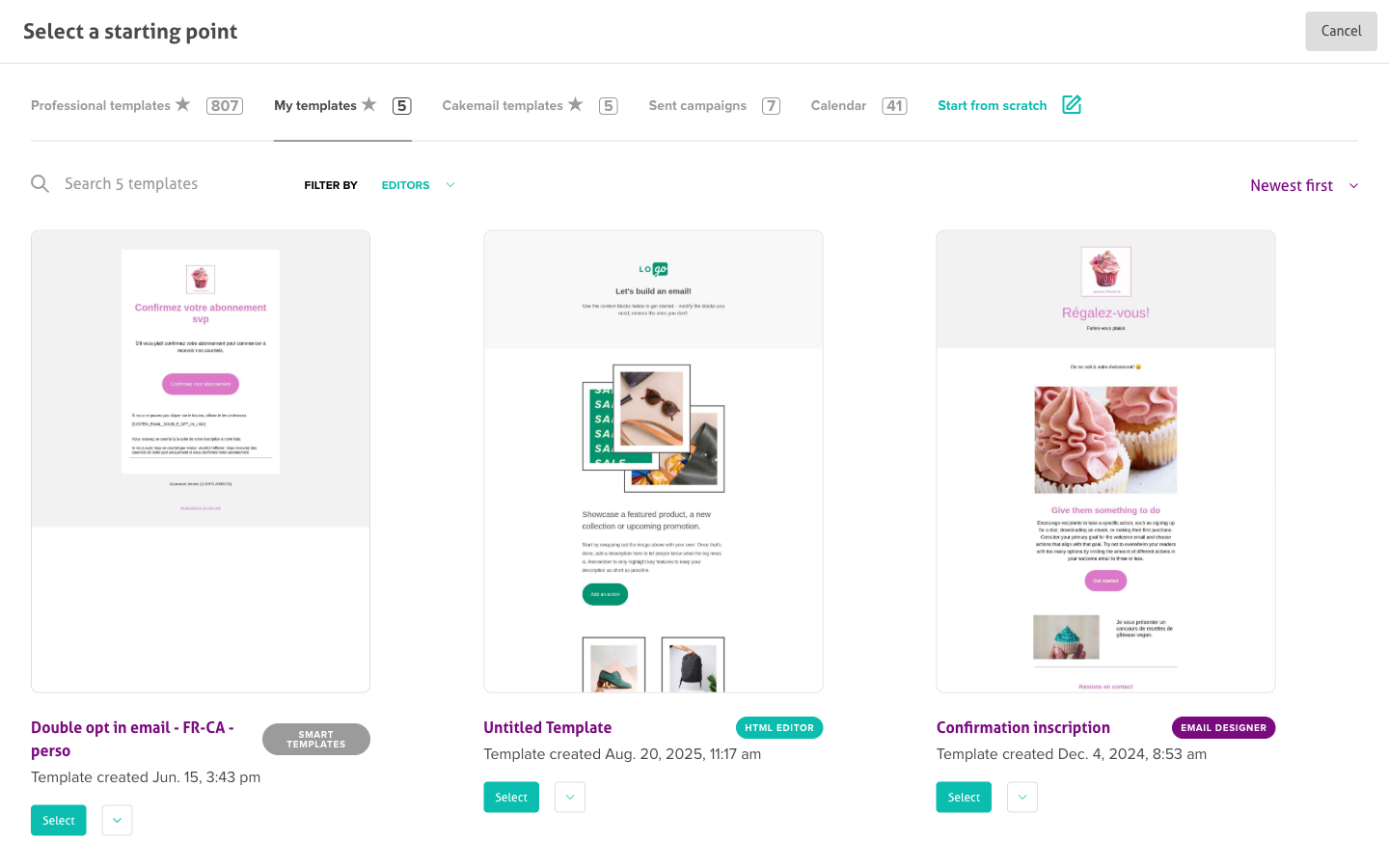
Once you've selected an option, you'll be directed to the email designer where you can customize and modify your template. Learn more about the email designer.
If you have branded your account by uploading your logo and including your color code, you'll have access to Smart Templates, a selection of templates created to automatically display your brand to make your email neat and professional.
Using Your Own Templates
You may have built or branded a template and want to use it again. Here's how you can do it:
- Click on Resources, then My Email Templates
- Click on Select Template in the upper right corner of the email preview window.
- Edit your saved template The template you modify can be saved later with your changes to be used as a future template specially branded and designed to meet your specific needs.
Using a Professional Template
Over 600 professional and tested templates are available depending on your plan. Brand the one you like or use one that resonates with the season! Here's how you can do it:
-
In the left menu, select Campaigns, then Email Templates.
-
Use the filter and search bar to choose from our wide variety of themes
-
Select the Preview option under your preferred template
-
Click on Select Template in the upper right corner of the email preview window
-
Edit the template
Reusing a Previously Sent Campaign
If you're sending a newsletter, using the same template and changing the content is the easiest way to make it professional and consistent with your brand. Here's how to do it:
-
In the left menu, select Campaigns, then Emails, and find the sent campaign you want to reuse.
-
Click the arrow to the right of the campaign to open its menu.
-
Duplicate the campaign, it will appear in your Drafts.
-
Edit the template
Designing Your Own Template
If you feel comfortable with your design talent or have a specialist who can do it, you can easily create your own template. But beware: designing an email that displays correctly in all browsers is tricky! To create your own template from scratch, select the Start from Scratch menu, in the Email templates section, under Campaigns.
You can then choose from these three different options:
- Start with the essentials
- Start with a blank canvas
- Start with your own code.
Start with the essentials
Choose this option to open the editor with a basic template that you can then modify according to your wishes. Learn more about the email designer.
Start with a blank canvas
Select a blank template and use your imagination to create your content.
Start with your own code
If you want to import HTML code written outside our tool, you can paste it into our editor with this option. The email can be modified using an HTML editor.
Here's how you can open the editor:
- Select the Start with your own code option
- Paste your code on the black part of the page
- Click on Upload and Edit
Previewing Your Campaign
Before sending your campaign, it's essential to know exactly how it will appear on different platforms. With the campaign preview feature, you can do exactly that! Whether on web, mobile, or in dark mode, you can see your campaign exactly as your customers will see it. Even links and buttons are fully previewable, so there are no surprises.
Just click on the eye logo at the top right, and see what your campaign looks like on a mobile and in dark mode.
Be careful: this preview mode is helpful to help you design, but it doesn't replace the tests you need to send.
Testing and Sending Your Campaign
Whatever choice you made for your templates, it's very important to test your campaign thoroughly before sending emails to your customers, especially with a new design. Test it on different email browsers and don't forget to check on your phone too. Displaying a template on any platform can be complex! Put in a subject line, choose a time and date, sit back and watch the results!
You can use various subjects as content for your campaign. We suggest contacting us if you're still not sure what to use for your content, we'll be happy to discuss your business and help you get started.
Troubleshooting
Email designer won't load
- Clear your browser cache and cookies
- Try using Chrome or Firefox for better compatibility
- Disable browser extensions that might interfere
Template won't save
- Check your internet connection stability
- Save frequently when working on complex designs
- Use the auto-save feature if available
Images not displaying
- Make sure images are under 1MB for optimal loading
- Use supported formats (JPG, PNG, GIF)
- Upload images to the library before inserting them
Campaign stays in draft
- Check that all required fields are completed
- Verify that a recipient list is selected
- Make sure subject line and sender information are filled in
HTML import issues
- Validate your HTML code before importing
- Remove JavaScript and external CSS references
- Use inline CSS for better email client compatibility
Preview doesn't match final email
- Test sending to multiple email addresses
- Check rendering in actual email clients
- Account for email client limitations in design
Related Articles
- Getting Started - Getting started guide
- Using the Email Designer - Design your campaign
- Using Smart Templates - Start with templates
- Creating and Managing a Contact List - Select recipients
- Testing Your Campaign - Before sending