

Working with Smart Templates
Description
You can enhance your email marketing with smart templates from our application. Upload your logo and define colors for titles, paragraphs, links, and buttons in the brand settings. Choose a smart template from the menu, and your branding will automatically display. Create visually appealing and consistent emails effortlessly.
This article will explore how to leverage smart templates in our application to enhance your email marketing efforts. Consistency and branding are critical elements of successful email marketing.
Why It's Important
By using smart templates, you can ensure a consistent and professional look for all your email communications. Investing in smart templates saves time, creates a strong brand identity, and leads to more engaging email marketing.
Step-by-Step Instructions
Create Your Brand.
-
Access brand settings In the left menu, go to Settings, then Brand Kit. This will take you to the branding settings.
-
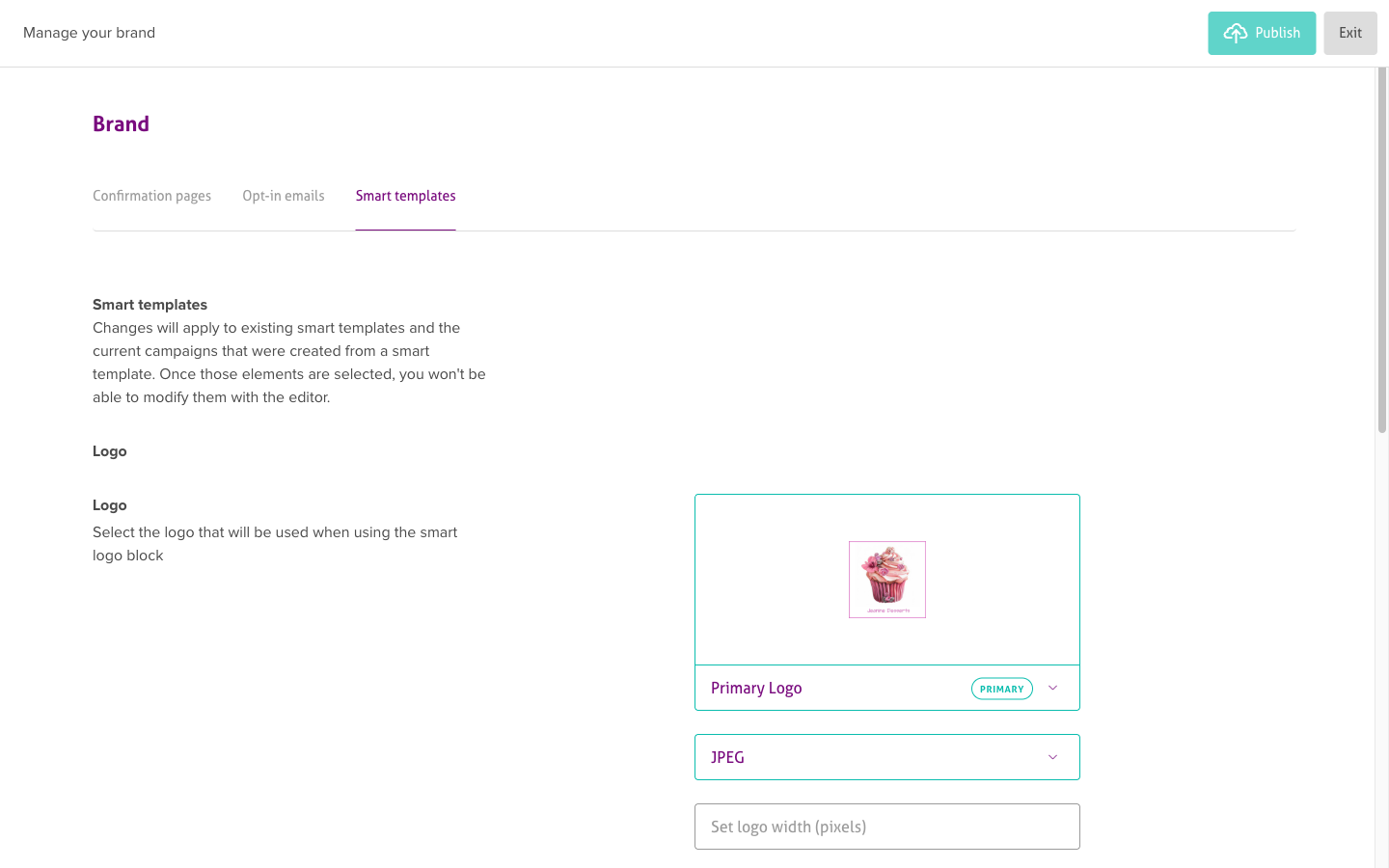
Navigate to smart templates In the branding settings, navigate to the "Smart Templates" tab. This is where you can customize your smart templates.
-
Upload your logo Once uploaded, click on the logo you want to set as the main logo. Make sure your logo file is in the right format and size before uploading. We recommend using a transparent PNG file with dimensions of 400 pixels wide by 200 pixels high. This logo will automatically be applied when using the smart logo block in your email campaigns.
-
Choose text colors Next, choose the desired text colors that align with your brand's style and identity. You can select the primary and secondary text colors used in your smart templates.
-
Set button colors Similarly, set the button colors that complement your brand's color palette. This ensures that buttons in your smart templates are visually consistent and in line with your brand's aesthetic.
Using Smart Templates in Campaigns.
-
Create a new campaign Once you've customized your smart templates, you can create a new campaign.
-
Enable smart branding During the campaign creation process, make sure to enable the "Activate smart branding" option. This will automatically apply your smart templates to the campaign, providing a consistent and branded look.
-
Generate a smart email You can quickly generate a new email by choosing Smart Templates from the menu and selecting your desired email. This email will automatically feature your branding. Feel free to modify the text as needed!
Troubleshooting
Smart branding isn't applying to my template
- Check that "Enable smart branding" is turned on when creating the campaign
- Verify you've saved your brand settings before using templates
- Ensure your logo and colors are properly configured in brand settings
- Try refreshing the page after saving brand settings
Logo appears distorted or wrong size
- Use the recommended dimensions (400px wide by 200px high)
- Upload a transparent PNG file for best results
- Check if the logo file is corrupted or in an unsupported format
- Avoid logos with excessive white space around the edges
Brand colors aren't displaying correctly
- Confirm you've selected and saved all required colors (primary, secondary, buttons)
- Use hexadecimal color codes for precision (#FFFFFF format)
- Check if your browser cache needs to be cleared
- Verify colors meet accessibility contrast requirements
Can't find Smart Templates option
- Make sure your account plan includes Smart Templates feature
- Check if you're in the right section of the campaign builder
- Verify you have necessary permissions to access brand settings
- Contact support if the feature should be available but isn't showing
Related Articles
- Creating campaigns - Using templates in campaigns
- Managing your brand colors - Customizing templates
- Saving campaigns as templates - Creating custom templates
- Using the email designer - Editing templates
- Sharing email templates - Partner templates