

Adding a Sender
Why this matters
A sender is the name and email address your recipients see in the "From" line of your emails. You can only send campaigns from a sender that has been verified, which confirms you have access to that address.
For the best deliverability, use an email address on a domain you control and authenticate that domain. Free addresses (like Gmail or Yahoo) work, but they show as a Public Domain and can't be authenticated, which hurts inbox placement.
Before you start
- Use an email address you can actually open; you'll need to click a verification link sent to it.
- Prefer an address on your own domain (for example
you@yourcompany.com) rather than a free provider.
Add a sender
-
In the left menu, go to Settings ▸ Senders.
-
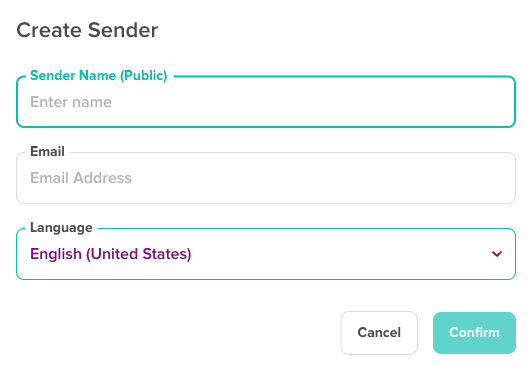
Click the + button in the top-right corner. The Create Sender panel opens.
-
Fill in:
- Sender Name (Public): the name recipients will see (for example your company name).
- Email: the "From" address your campaigns are sent from.
-
Click Confirm. The platform sends a verification email to that address.
-
Open that inbox and click the verification link. Your sender then shows as VERIFIED and is ready to use.
Manage your senders
On the Senders page, each sender shows its Name, Email Address, Domain, and Domain Authenticated status. For each one you can:
- Resend: send the verification email again if it wasn't received.
- View: see the sender's details.
Statuses you may see:
- VERIFIED: the sender address is confirmed and ready to send.
- Public Domain: a free provider (like Gmail); it can't be authenticated.
- Unauthenticated / Authenticated: your domain's authentication status. See Authenticating your domain.
Troubleshooting
The verification email didn't arrive
- Check the spam/junk folder of that address.
- Make sure the email address was typed correctly, with no spaces.
- Wait a few minutes (it can be delayed), then use Resend.
My sender still shows as unverified
- Open the verification email and click the link (it can expire; use Resend to get a new one).
- If it keeps failing, remove and re-add the sender, or contact our Support team.
I can't add a sender from a free provider
- Gmail, Yahoo, and similar providers require authentication you don't control. Use an address on your own domain instead, and authenticate the domain.
Related articles
- Authenticating your domain - Improve deliverability for your sender
- Tracking and bounce domains - Brand links and handle bounces
- Updating my company profile - Default sender information
- Creating campaigns - Choose your sender when sending