

Updating Your Organization Profile
Description
Your company profile settings need to be up to date before sending your first campaign, as the law requires a physical address in every campaign.
This address appears at the bottom of your emails
The physical address you enter in your company profile is automatically added to the footer of every email you send. This is what keeps your campaigns compliant with anti-spam laws (such as CAN-SPAM and CASL), which require a valid postal address in every message. Your recipients see this address, so make sure it's accurate and kept up to date.
Why This Matters
- Legal compliance: a physical address is required in every campaign by law
- Professional appearance: complete profile information inspires trust
- Contact information: provides recipients with legitimate business details
Step-by-Step Instructions
To update your company profile, follow the instructions.
-
Go to the Settings menu, click on Organization Profile.
-
Click on the pencil button to edit each section
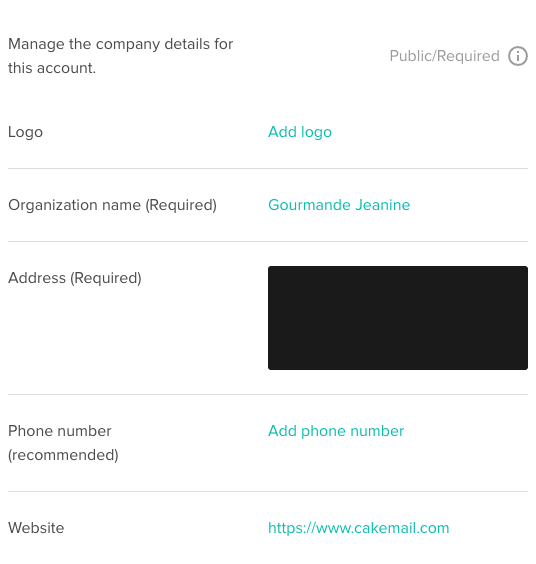
Fields you can edit
- Logo (required, shown publicly)
- Organization name (required)
- Address (required): address lines, city, state/province/region, country, and postal code — this is the address shown in your email footer
- Phone number (recommended)
- Website
Brand colors (used on your confirmation pages and for Smart branding) are set separately in Brand Kit. See Configuring your brand.
Best Practices
- Keep information up to date: Update details whenever your company information changes
- Complete all fields: Fill out all relevant fields for a professional appearance
- High-quality logo: Use a clear and professional logo image
- Accurate address: Ensure your physical address is correct and current
- Valid contact information: Provide working phone numbers and website URLs
Troubleshooting
Unable to upload your logo
- Use a PNG or JPG file.
- Keep the file size reasonable and the image dimensions clear.
- Try converting the image to PNG.
Address validation errors
- Include all required fields
- Use standard address format
- Avoid special characters
- Check postal code format
Changes are not saving
- Click "Save" after each modification
- Check for validation errors
- Ensure all required fields are filled
- Try editing one field at a time
Cannot edit company information
- Confirm you have administrator privileges
- Check if account is suspended
- Ensure fields are not locked by organization
- Contact account owner for permissions
Website URL not accepted
- Include full URL (https://...)
- Remove trailing spaces
- Ensure URL is publicly accessible
- Use standard domain format
Related Articles
- Managing your brand colors - Customize your brand appearance
- Adding your physical address - Include required address information
- Adding and editing users - Manage team access
- First steps - Getting started guide
- Setting up and managing sender emails - Configure sending addresses