

Adding and Editing Users
Plan availability
Number of users by plan: Free includes 1 user, Growth includes 5, and Premium is unlimited.
Learn how to add new users to your account and manage them effectively. This guide covers user account creation and best practices for team collaboration.
Description
User accounts allow authorized team members to access your account. The system identifies users by their username, which is the email address used when signing up. This username serves as the login name. Users are team members who have been invited to share an account, and they can be assigned different permission levels.
Why It's Important
Managing users effectively helps you organize your team and maintain smooth workflows. Understanding how to use the user management page is crucial for creating new users and modifying existing ones.
Step-by-step instructions
To add new users to your account
-
Go to the Settings menu, then choose Users
-
Select the **+ ** button to invite team members
-
Enter their information and click Send invitation Each user can work in their own language.
-
Users must accept the email invitation by clicking the link
-
Next, users must create a password for their account Make sure your team knows how to create strong passwords to ensure your account is never compromised.
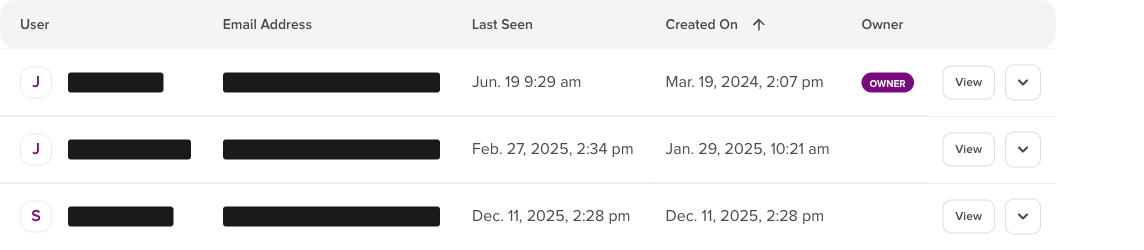
To edit users
-
Go to the Settings menu, then choose Users
-
In the menu that appears, select View
-
Edit the user's information (note: email addresses cannot be changed)
Account sharing
We strongly recommend creating individual user accounts rather than sharing login credentials. Adding separate users for each team member prevents security risks and ensures proper access control.
Troubleshooting
Invitation email not received
- Check spam/junk mail folder
- Verify the email address is correct
- Resend invitation after 24 hours
- Ensure your account hasn't reached its user limit
"Permission denied" error when adding users
- Confirm you have administrator privileges
- Check if your account plan allows additional users
- Contact your account administrator for access
User cannot log in after accepting invitation
- Ensure they created a password
- Clear browser cache and cookies
- Try using a different browser
- Reset password if necessary
Cannot edit user information
- Only administrators can modify user details
- Email addresses cannot be changed after creation
- To change an email, delete and recreate the user
Duplicate user error
- Email address is already registered
- Check active and pending invitations
- Delete existing user before re-adding
Related articles
- First steps - Get started with your account
- Setting up multi-factor authentication (MFA) - Secure user accounts with MFA
- Managing your billing - Manage billing and user limits
- Setting your timezone - Configure timezone for each user
- Create and manage a contact list - Start building your mailing lists