

Adding Anchor Links to Email Content with HTML
Description
An anchor link takes the reader to another place in the same email, for example from a table of contents at the top to a section further down. This article explains how to create the destination with an HTML block and how to point a link, a button or a menu item to it.
This method works in a normal newsletter built with the drag-and-drop email designer. You do not need to write your email in HTML: you only add one small HTML block for each destination.
Why It's Important
Anchor links make long newsletters and digest-style emails easier to read. Readers jump directly to the sections that interest them, so they scroll less and engage more with your content. Anchor links are useful for emails with multiple topics, product showcases or event schedules.
Use the id attribute on an empty <a> tag, for example <a id="section1"></a>. Do not use the name attribute: the platform removes it when the email is sent, so the link goes nowhere. A <div> with an id does not work either.
Gmail (on the web and in the app) does not support links to a section of the same email: the link does nothing. They work in most other email apps, such as Apple Mail and Outlook. If many of your subscribers use Gmail, use links to web pages instead.
Step-by-Step Instructions
-
Add an HTML block
- In the email designer, open the Content tab.
- Drag the HTML block to the place where the reader must land, just above the section that you want to link to.
- The rest of your email does not change: your text, images and buttons stay normal blocks.
-
Add the destination marker
- Select the HTML block. Its code shows on the right, in the HTML properties panel.
- Delete the example code of the block and paste this code instead:
CodeThis empty tag marks the destination. The reader does not see it in the email.
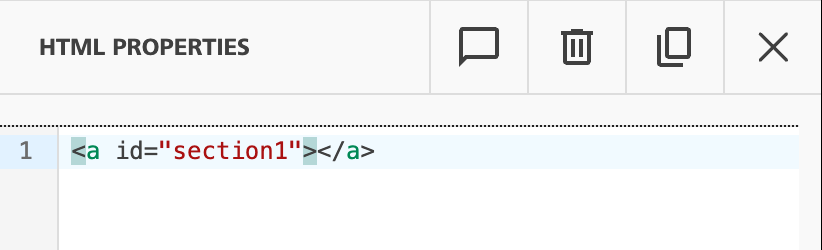
-
Create the link to the destination
- Text link: select the text, then click the link icon (Insert/edit link) in the text toolbar. In the Insert link window, type
#section1in the Url field, then click Save. - Button: select the button. In the button properties, under Action, type
#section1in the Url field. - Menu item: select the menu. Under Configure menu items, turn on More options for the item, then type
#section1in the Url field. See Using the Menu Block for each field of a menu item.
The address is the
#sign followed by the exactidof the destination. - Text link: select the text, then click the link icon (Insert/edit link) in the text toolbar. In the Insert link window, type
-
Save and test
- Save your email.
- Send a test email to yourself and click each anchor link to make sure it goes to the correct place.
Rules for anchor names
- Give each destination a unique
idin the email. - Do not use spaces or accents in the
id. Use letters, numbers and hyphens, for examplesection1ormenu-desserts. - The address of the link must match the
idexactly, with the#sign in front:id="section1"and#section1.
HTML Code Example
Here's an example with a link at the top of the email and its destination further down:
Code
When the reader clicks Go to section 1, the email scrolls to the <a id="section1"></a> tag, just above the section title.
Anchor links are not changed by click tracking. They stay as #section1 in the email that is sent.
Troubleshooting
The link does not go anywhere
- Do not use the
nameattribute (<a name="section1">). The platform removes it when the email is sent. Useidinstead:<a id="section1"></a>. - A
<div>with anid(<div id="section1">) does not work as a destination. Use an empty<a>tag with anid. - Make sure the
idhas no spaces and no accents. - Make sure the address of the link matches the
idexactly, including upper and lower case.
The link goes to the wrong place
- Check that each
idis used only once in the email. - Put the destination tag just before the content that the reader must see.
Email client compatibility
- Gmail (on the web and in the app) does not support anchor links: the link does nothing. They work in most other email apps, such as Apple Mail and Outlook.
- Test in the email apps that your audience uses most.
- In very long emails, also add a short summary at the top so that all readers can find the information.
HTML code does not show
- Use the HTML block, not a text block, for the destination tag.
- Make sure each tag is closed correctly.
Related Articles
- Using the Menu Block - Menu items that link to sections
- Using the Email Designer - HTML editing mode
- Importing Your HTML Code - Working with HTML
- Adding a Survey to a Campaign - Linking to sections
- Creating Campaigns - Campaign basics
- Testing Your Campaign - Testing anchor links