

Understanding Email Automation
Description
Automation allows you to link an action performed by your contacts to a sequence of predefined tasks. Manual tasks can be executed automatically by this tool, with a single work platform that synchronizes with existing conditions and activities. With automation, for example, you could configure a welcome email to be sent a few seconds after a contact signs up for a subscription form linked to a list.
What follows is presented in this guide:
- The ability to access and manage automations
- A description of this tool's functions
Why this is important
Automation is perfect for repetitive asynchronous tasks. It can increase efficiency, productivity, accuracy and reduce errors when done well. You'll be able to better manage your work system with it because you'll have a clearer overview of it.
Step-by-step instructions
Creating an automation:
-
In the left menu, select Automations.
-
Click on the + sign at the top right of the page. You can also create it from the Create button If you've already created an automation, it will also be found here. You can open it, rename it, or delete it.
Automation editing page
On this page, you'll see how your automation flows from top to bottom in a structured way with each step represented by interconnected blocks.
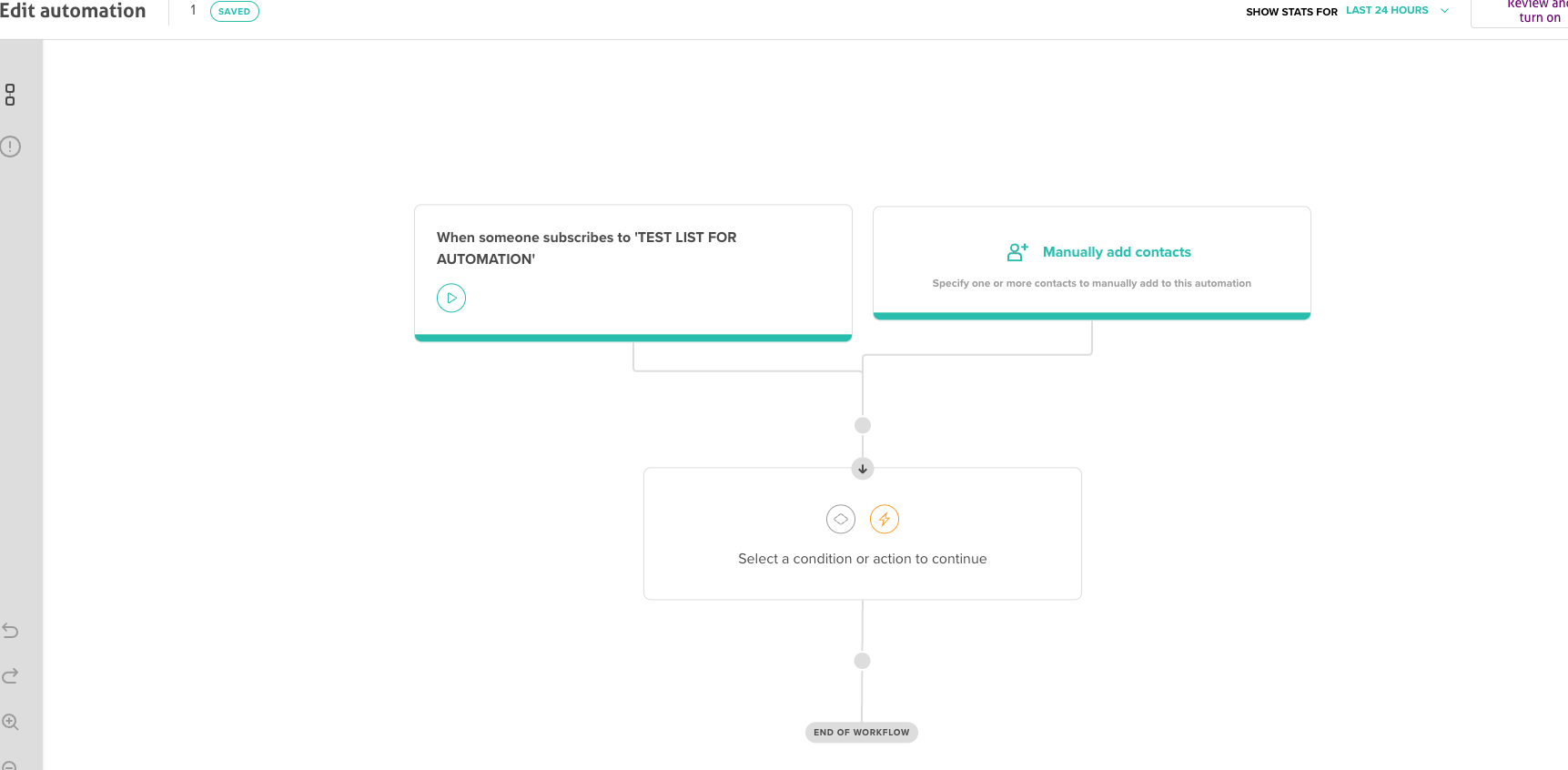
Here you can:
- Manually add contacts to the automation
- View automated campaign statistics during a specific period
- Edit the workflow
Editing an automation
There are two types of steps when editing or creating a flow: conditions and actions.
Conditions
A condition can be one of:
- Delay: set a delay in seconds, minutes, hours, days, or even weeks.
- If / Else: depending on whether contacts match the conditions, they join the Yes path; otherwise they go to the No path.
- Path split: divide your subscribers into separate paths.
Actions
The default action on an automation is to send an automated email. You can edit the email with the email designer and set the email subject line in the deployment settings menu.
Activating an automation
Once you're ready to launch this automation, you can review and activate it.
You'll be notified if something needs to be fixed before the automation can be activated.
Automation statistics
Click the dropdown button to choose the period and view your automation statistics.
Click on the email to see a more detailed side panel. You can see open, click, unsubscribe, delivery and bounce rates for your email.
The gears are now in motion and the automation is active! You can adjust it according to your needs.
Duplicating and editing an automation flow
Existing automations must be duplicated to be edited.
Here's how to proceed:
-
Click on the down arrow at the top right
-
Use this menu to Rename, Delete or Duplicate the automation
If you choose to duplicate it, your automation will be recreated as a copy that you can edit.
Troubleshooting
Automation doesn't start
- Check that the automation toggle button is set to ON
- Verify that trigger conditions are properly configured
- Ensure the connected list has active subscribers
Unable to edit active automation
- Duplicate the automation to create an editable copy
- Deactivate the original automation before activating the new version
- Test changes with a small segment before full deployment
Statistics don't display
- Allow 24-48 hours for initial statistics to populate
- Check that the selected period matches when emails were sent
- Verify that tracking pixels aren't blocked by email clients
Issues with email designer
- Clear browser cache if designer doesn't load properly
- Use Chrome or Firefox for better compatibility
- Save your work frequently to avoid losing changes
Workflow validation errors
- Ensure all email content blocks are completed
- Check that all branches have defined endpoints
- Verify that required fields in conditions are filled
Related articles
- Creating an automated welcome email - Your first automation
- Creating an automation with branching conditions - Advanced workflows
- Creating a looping automation - Recurring campaigns
- First steps - Getting started guide
- Creating and managing a contact list - Automation recipients